> ## Documentation Index
> Fetch the complete documentation index at: https://docs.ryft.io/llms.txt
> Use this file to discover all available pages before exploring further.
# Microsoft OneLake
> Connect Microsoft Fabric OneLake to Ryft via Iceberg REST Catalog.
Ryft connects to your Microsoft Fabric OneLake lakehouse via its Iceberg REST Catalog API to collect table metadata for visibility and optimization.
## Prerequisites
* A Microsoft Fabric workspace with a lakehouse containing Iceberg tables
* A Microsoft Entra ID App Registration (service principal) with access to the workspace
* Your Azure Tenant ID, Workspace ID, and Lakehouse ID
* The following tenant admin settings must be enabled (Fabric Portal -> Settings (gear icon) -> Admin portal -> Tenant settings):
* **Service principals can call Fabric public APIs** — found under **Developer settings**
* **Users can access data stored in OneLake with apps external to Fabric** — found under **OneLake settings**
## Step 1: Create a Microsoft Entra ID App Registration
Register an application in Microsoft Entra ID that Ryft will use to authenticate against your OneLake lakehouse.
1. Navigate to **Azure Portal -> Microsoft Entra ID -> Manage -> App registrations**
2. Click **New registration**
3. Enter a name (e.g. `Ryft-OneLake-Integration`), select **Single tenant only** for supported account types, and register the application
4. Note the **Application (client) ID** and **Directory (tenant) ID**
5. Navigate to **Manage -> Certificates & secrets -> New client secret**
6. Create a secret and note its **Value**
## Step 2: Grant access to your Fabric workspace
The service principal must have read access to your Microsoft Fabric workspace and lakehouse.
1. Navigate to [**Microsoft Fabric**](https://app.fabric.microsoft.com) and open your workspace from the left sidebar
2. Click **Manage access**
3. Click **Add people or groups**
4. Search for the App Registration name you created (e.g. `Ryft-OneLake-Integration`)
5. Assign the **Contributor** role (minimum required for metadata access via the OneLake API)
6. Click **Add**
## Step 3: Collect the required identifiers
Open your lakehouse in the Fabric portal — you should see the Explorer view with your tables and files:
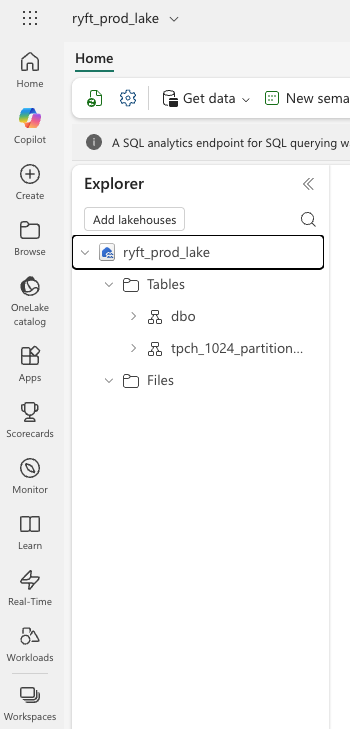 You will need the following identifiers from your Fabric environment:
| Parameter | Where to find it |
| ----------------- | ------------------------------------------------------------ |
| **Tenant ID** | Azure Portal -> Microsoft Entra ID -> Overview |
| **Workspace ID** | Fabric Portal -> Workspace settings -> URL or details pane |
| **Lakehouse ID** | Fabric Portal -> Lakehouse -> URL or details pane |
| **Client ID** | Azure Portal -> App registrations -> Application (client) ID |
| **Client Secret** | The secret value from Step 1 |
The Workspace ID and Lakehouse ID are GUIDs visible in the Fabric portal URL when you open the workspace or lakehouse. For example:
`https://app.fabric.microsoft.com/groups//lakehouses/`
## Step 4: Provide credentials to Ryft
Share the following with your Ryft representative:
* **Tenant ID** — your Microsoft Entra ID directory ID
* **Workspace ID** — the Fabric workspace GUID
* **Lakehouse ID** — the Fabric lakehouse GUID
* **Client ID** — the App Registration application ID
* **Client Secret** — the App Registration secret value
Ryft will securely store these credentials and use them to authenticate against the OneLake Iceberg REST API at `https://onelake.table.fabric.microsoft.com/iceberg`.
You will need the following identifiers from your Fabric environment:
| Parameter | Where to find it |
| ----------------- | ------------------------------------------------------------ |
| **Tenant ID** | Azure Portal -> Microsoft Entra ID -> Overview |
| **Workspace ID** | Fabric Portal -> Workspace settings -> URL or details pane |
| **Lakehouse ID** | Fabric Portal -> Lakehouse -> URL or details pane |
| **Client ID** | Azure Portal -> App registrations -> Application (client) ID |
| **Client Secret** | The secret value from Step 1 |
The Workspace ID and Lakehouse ID are GUIDs visible in the Fabric portal URL when you open the workspace or lakehouse. For example:
`https://app.fabric.microsoft.com/groups//lakehouses/`
## Step 4: Provide credentials to Ryft
Share the following with your Ryft representative:
* **Tenant ID** — your Microsoft Entra ID directory ID
* **Workspace ID** — the Fabric workspace GUID
* **Lakehouse ID** — the Fabric lakehouse GUID
* **Client ID** — the App Registration application ID
* **Client Secret** — the App Registration secret value
Ryft will securely store these credentials and use them to authenticate against the OneLake Iceberg REST API at `https://onelake.table.fabric.microsoft.com/iceberg`.