> ## Documentation Index
> Fetch the complete documentation index at: https://docs.ryft.io/llms.txt
> Use this file to discover all available pages before exploring further.
# Ryft MCP
> Enrich AI agents with lakehouse context using the Ryft MCP server. Supports any agent framework.
Ryft MCP is currently in **Private Preview**. To get early access, contact your Ryft representative.
Ryft MCP is a [Model Context Protocol](https://modelcontextprotocol.io/) server that enriches your AI agents with full lakehouse context, including table metadata, query history, and domain knowledge - so they can write accurate queries and answer business questions without guessing.
## Prerequisites
* One of the supported AI tools: [Claude](https://claude.ai), [Claude Code](https://docs.anthropic.com/en/docs/claude-code), or [Cursor](https://www.cursor.com/)
## Setup
**1. Add MCP configuration**
 **2. Connect**
Click **Install** in the prompt that appears, then click **Connect**. A browser window will open for you to log in with your Ryft credentials. After authenticating, you can close the browser tab and return to Cursor.
Add the following to `.cursor/mcp.json` in your project root (or `~/.cursor/mcp.json` for global access):
```json theme={null}
{
"mcpServers": {
"ryft": {
"type": "http",
"url": "https://app.ryft.io/mcp"
}
}
}
```
Then open Cursor Settings (`Cmd/Ctrl + Shift + J`) > **Tools & MCP** > find **Ryft** > **Enable** > **Connect**. A browser window will open for you to log in with your Ryft credentials.
**1. Add MCP server**
Run the following command in your terminal:
```bash theme={null}
claude mcp add --transport http ryft https://app.ryft.io/mcp
```
**2. Connect and authenticate**
In Claude Code, run `/mcp` to load the server. Select Ryft and choose **Authenticate**. A browser window will open for you to log in with your Ryft credentials.
Custom connectors are available on Claude Pro, Max, Team, and Enterprise plans.
**1. Add a custom connector**
Go to **Settings** > **Connectors** > **Add custom connector** and enter the following:
**2. Connect**
Click **Install** in the prompt that appears, then click **Connect**. A browser window will open for you to log in with your Ryft credentials. After authenticating, you can close the browser tab and return to Cursor.
Add the following to `.cursor/mcp.json` in your project root (or `~/.cursor/mcp.json` for global access):
```json theme={null}
{
"mcpServers": {
"ryft": {
"type": "http",
"url": "https://app.ryft.io/mcp"
}
}
}
```
Then open Cursor Settings (`Cmd/Ctrl + Shift + J`) > **Tools & MCP** > find **Ryft** > **Enable** > **Connect**. A browser window will open for you to log in with your Ryft credentials.
**1. Add MCP server**
Run the following command in your terminal:
```bash theme={null}
claude mcp add --transport http ryft https://app.ryft.io/mcp
```
**2. Connect and authenticate**
In Claude Code, run `/mcp` to load the server. Select Ryft and choose **Authenticate**. A browser window will open for you to log in with your Ryft credentials.
Custom connectors are available on Claude Pro, Max, Team, and Enterprise plans.
**1. Add a custom connector**
Go to **Settings** > **Connectors** > **Add custom connector** and enter the following:
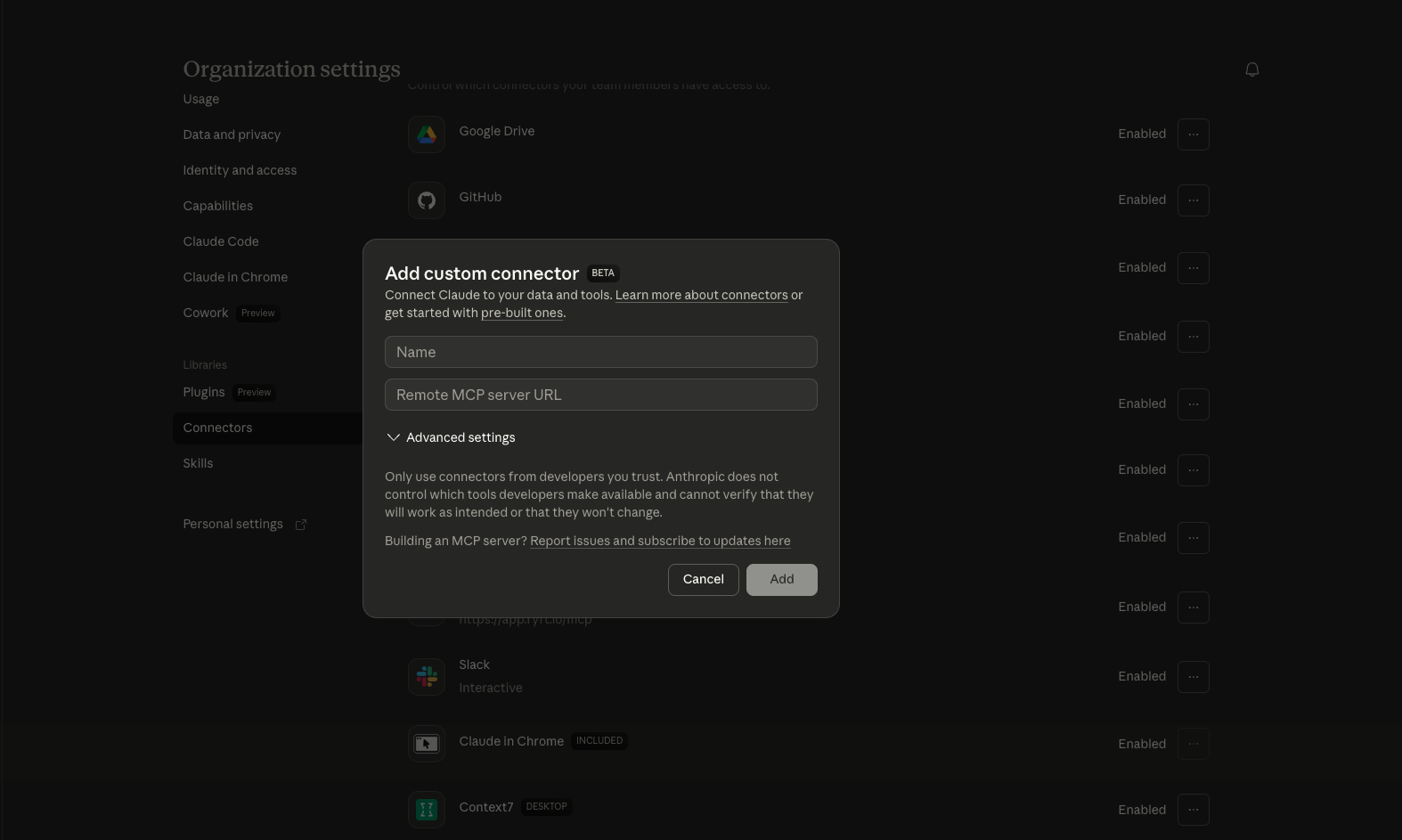 | Field | Value |
| ------------------------- | ------------------------- |
| **Name** | `Ryft` |
| **Remote MCP server URL** | `https://app.ryft.io/mcp` |
Click **Add** to save the connector.
**2. Authenticate**
A browser window will open for you to log in with your Ryft credentials. Once authenticated, the Ryft connector will be available in your conversations. You can close the browser tab and return to Claude.
**3. Enable in conversations**
In a new conversation, click the **+** button at the bottom of the chat, then **Connectors**, and toggle **Ryft** on.
## Verify
To confirm everything is working, ask your AI tool any question about your lakehouse, for example:
> "Search for tables related to orders"
If the connection is set up correctly, the assistant will use the `search_tables` tool and return results from your lakehouse.
## Troubleshooting
Your AI tool will prompt you to re-authenticate via your browser. Follow the prompts to log in again.
* Verify your network can reach `app.ryft.io`. Check if your organization requires a VPN.
* For Claude: go to Settings > Connectors and check that Ryft is enabled
* For Claude Code: run `/mcp` to check server status
* For Cursor: open Cursor Settings (`Cmd/Ctrl + Shift + J`) > Tools & MCP to check server status
Restart your AI tool after adding the MCP configuration. For Claude Code, run `/mcp` to reconnect.
| Field | Value |
| ------------------------- | ------------------------- |
| **Name** | `Ryft` |
| **Remote MCP server URL** | `https://app.ryft.io/mcp` |
Click **Add** to save the connector.
**2. Authenticate**
A browser window will open for you to log in with your Ryft credentials. Once authenticated, the Ryft connector will be available in your conversations. You can close the browser tab and return to Claude.
**3. Enable in conversations**
In a new conversation, click the **+** button at the bottom of the chat, then **Connectors**, and toggle **Ryft** on.
## Verify
To confirm everything is working, ask your AI tool any question about your lakehouse, for example:
> "Search for tables related to orders"
If the connection is set up correctly, the assistant will use the `search_tables` tool and return results from your lakehouse.
## Troubleshooting
Your AI tool will prompt you to re-authenticate via your browser. Follow the prompts to log in again.
* Verify your network can reach `app.ryft.io`. Check if your organization requires a VPN.
* For Claude: go to Settings > Connectors and check that Ryft is enabled
* For Claude Code: run `/mcp` to check server status
* For Cursor: open Cursor Settings (`Cmd/Ctrl + Shift + J`) > Tools & MCP to check server status
Restart your AI tool after adding the MCP configuration. For Claude Code, run `/mcp` to reconnect.