

Ryft MCP is currently in Private Preview. To get early access, contact your Ryft representative.
Prerequisites
- One of the supported AI tools: Claude, Claude Code, or Cursor
Setup
- Cursor
- Claude Code
- Claude
1. Add MCP configuration 2. ConnectClick Install in the prompt that appears, then click Connect. A browser window will open for you to log in with your Ryft credentials. After authenticating, you can close the browser tab and return to Cursor.
2. ConnectClick Install in the prompt that appears, then click Connect. A browser window will open for you to log in with your Ryft credentials. After authenticating, you can close the browser tab and return to Cursor.Manual setup
Manual setup
Add the following to Then open Cursor Settings (
.cursor/mcp.json in your project root (or ~/.cursor/mcp.json for global access):Cmd/Ctrl + Shift + J) > Tools & MCP > find Ryft > Enable > Connect. A browser window will open for you to log in with your Ryft credentials.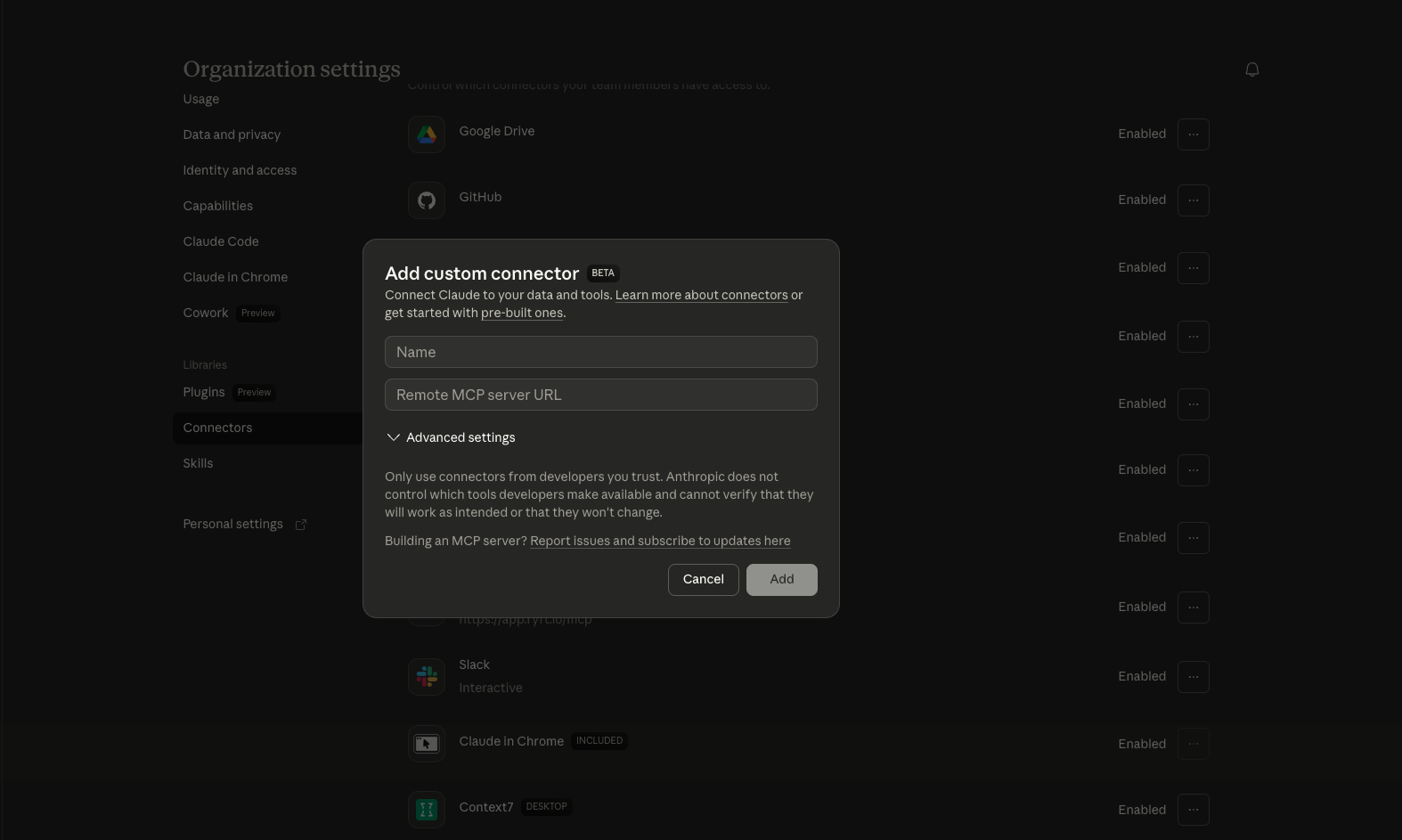
Verify
To confirm everything is working, ask your AI tool any question about your lakehouse, for example:“Search for tables related to orders”If the connection is set up correctly, the assistant will use the
search_tables tool and return results from your lakehouse.
Troubleshooting
Authentication expired or failed
Authentication expired or failed
Your AI tool will prompt you to re-authenticate via your browser. Follow the prompts to log in again.
MCP server not connecting
MCP server not connecting
- Verify your network can reach
app.ryft.io. Check if your organization requires a VPN. - For Claude: go to Settings > Connectors and check that Ryft is enabled
- For Claude Code: run
/mcpto check server status - For Cursor: open Cursor Settings (
Cmd/Ctrl + Shift + J) > Tools & MCP to check server status
Tools not appearing
Tools not appearing
Restart your AI tool after adding the MCP configuration. For Claude Code, run
/mcp to reconnect.