

Prerequisites
Before beginning the setup, make sure you have the following privileges (usually, you should reach out to an administrator with access to theaccountadmin role):
Manage service accountCreate roleManage securityCreate cluster
Step 1: Creating the Role
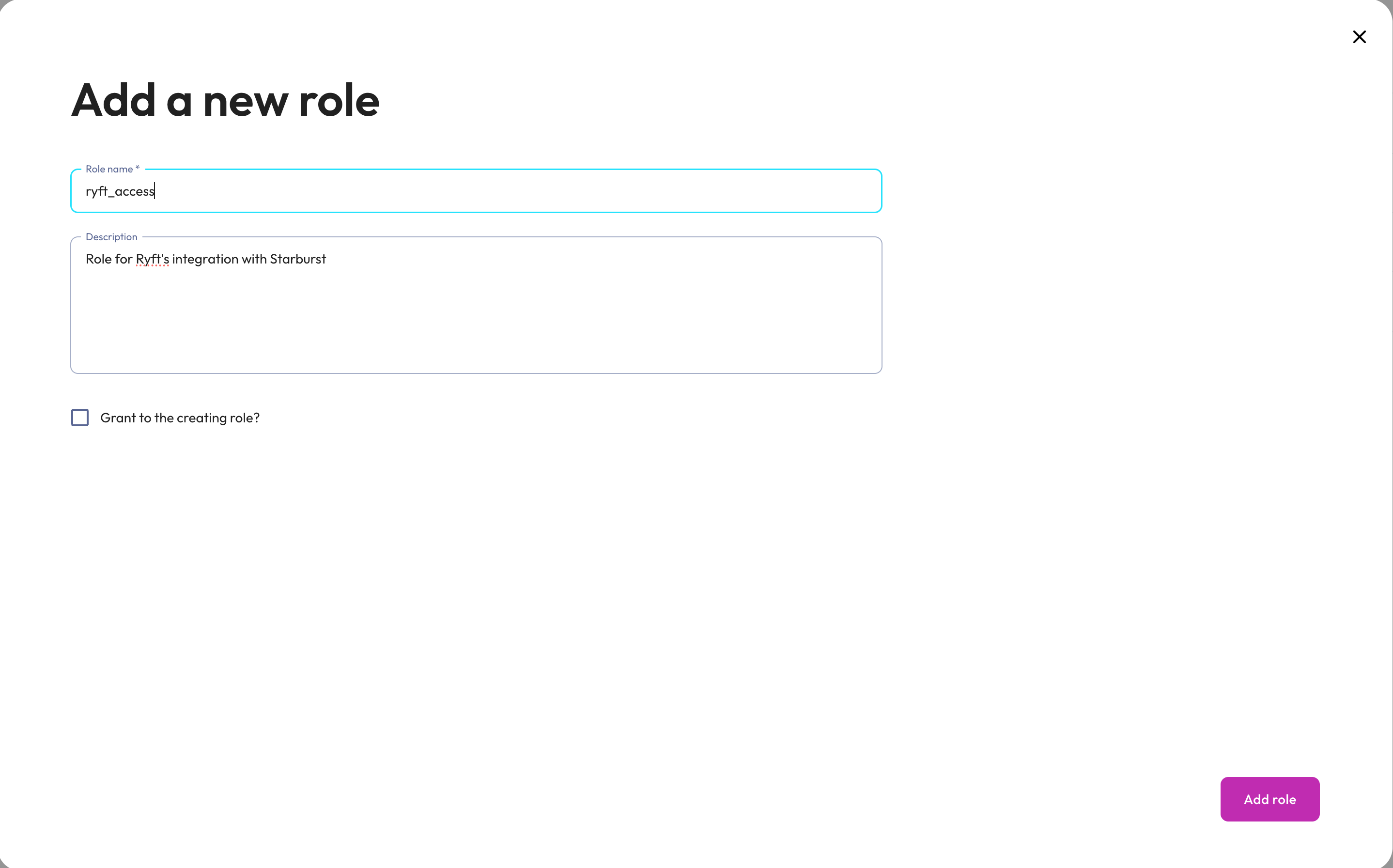
1. Navigate to Admin > Access > Roles and privileges in the Starburst Galaxy sidebar 2. Click Add role to create a new role 3. Configure the role:- Role name:
ryft_access - Click Add role
Step 2: Granting Role Access
In this step, you will configure Ryft’s role to access Starburst metadata and logs, namely:- Tables and views schema information
- Query logs
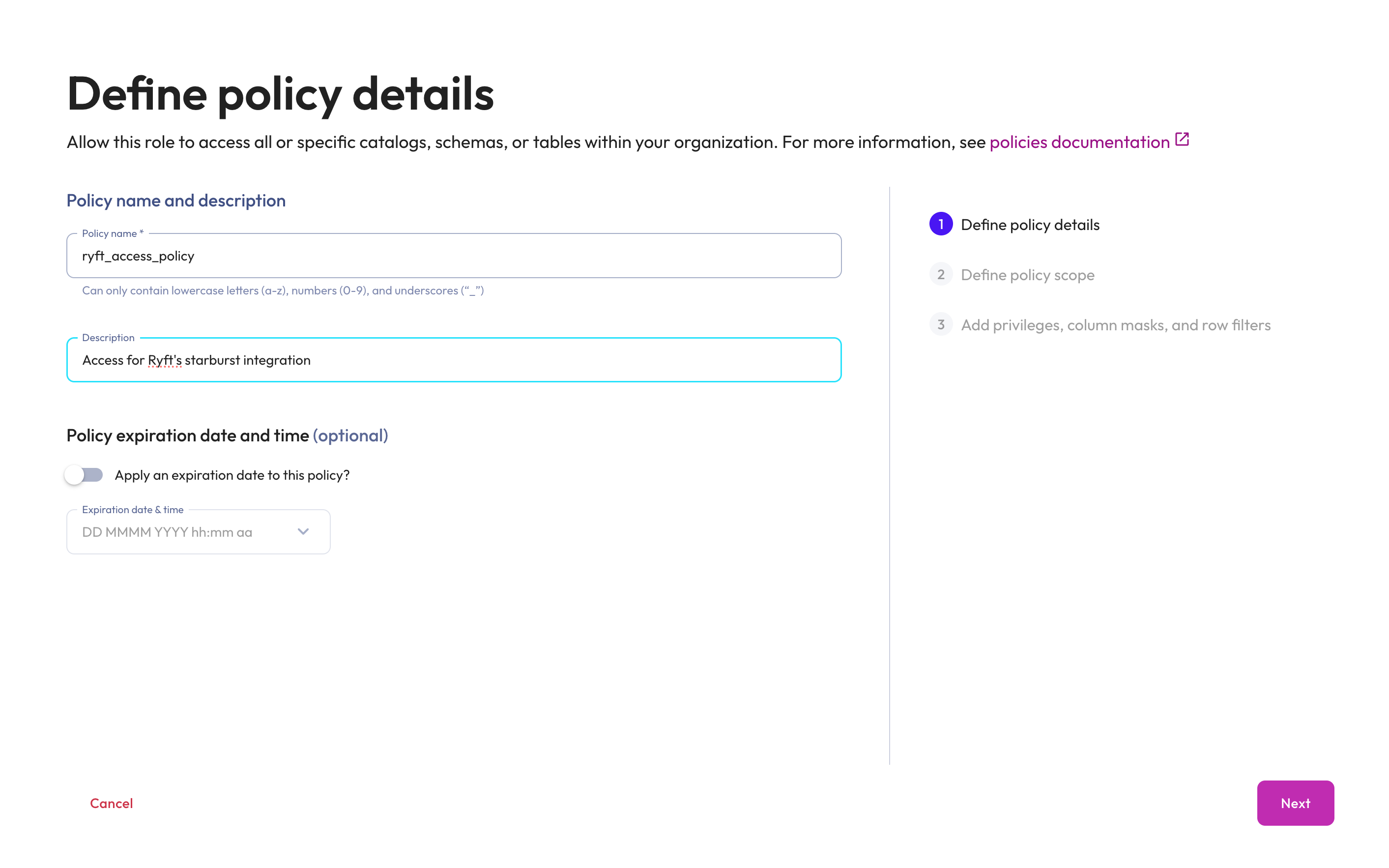
- Policy name:
ryft_access_policy - Description: Access for Ryft’s Starburst integration
- Click Next
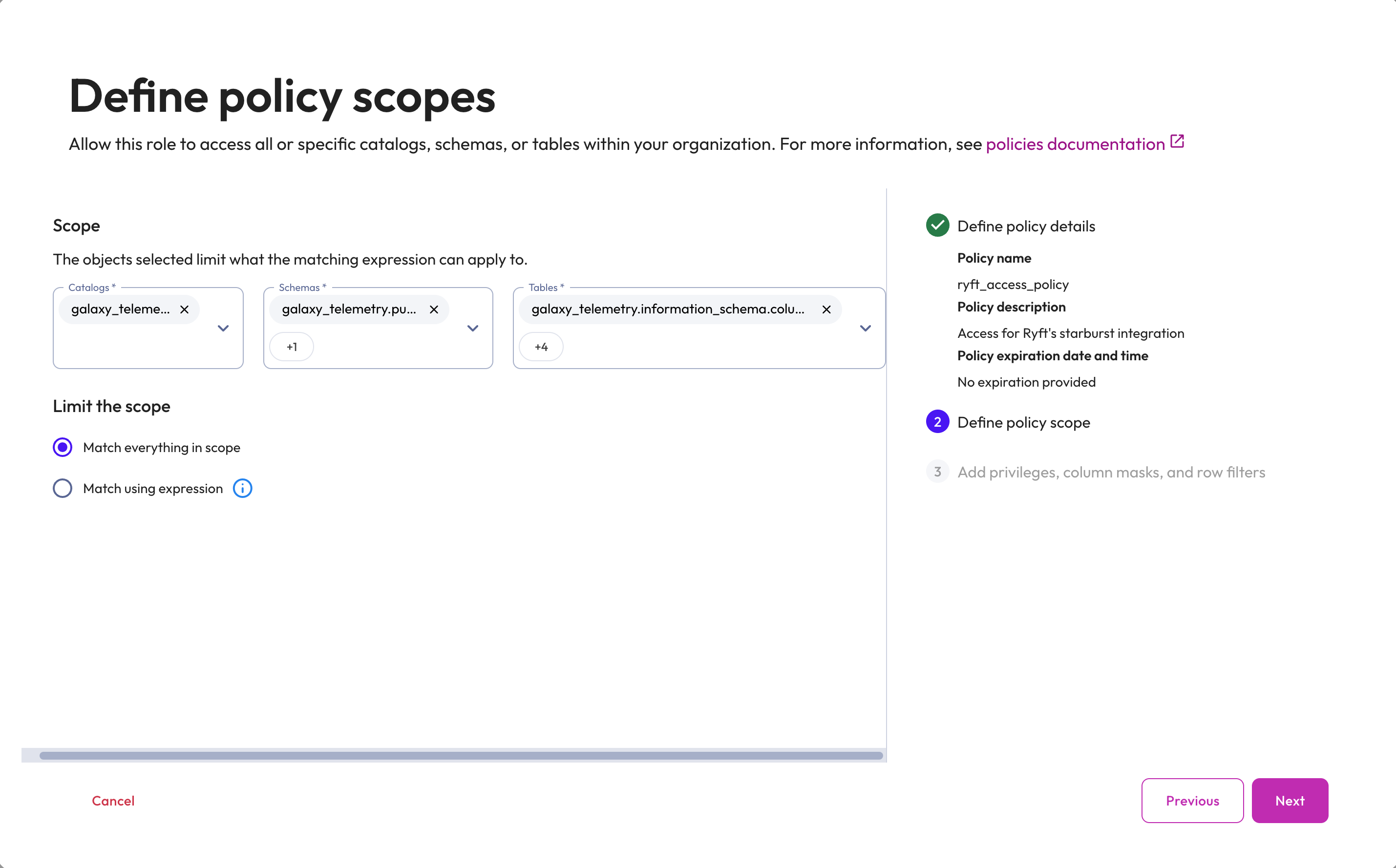
- Catalogs: Select
galaxy_telemetry - Schemas: Select the following schemas:
galaxy_telemetry.information_schemagalaxy_telemetry.public
- Tables: Select the following tables:
galaxy_telemetry.information_schema.schematagalaxy_telemetry.information_schema.tablesgalaxy_telemetry.information_schema.columnsgalaxy_telemetry.information_schema.viewsgalaxy_telemetry.public.query_history
- Choose Match everything in scope
- Click Next
- Grant: ALLOW
- Privileges: Select (for read access)
- Click Create policy
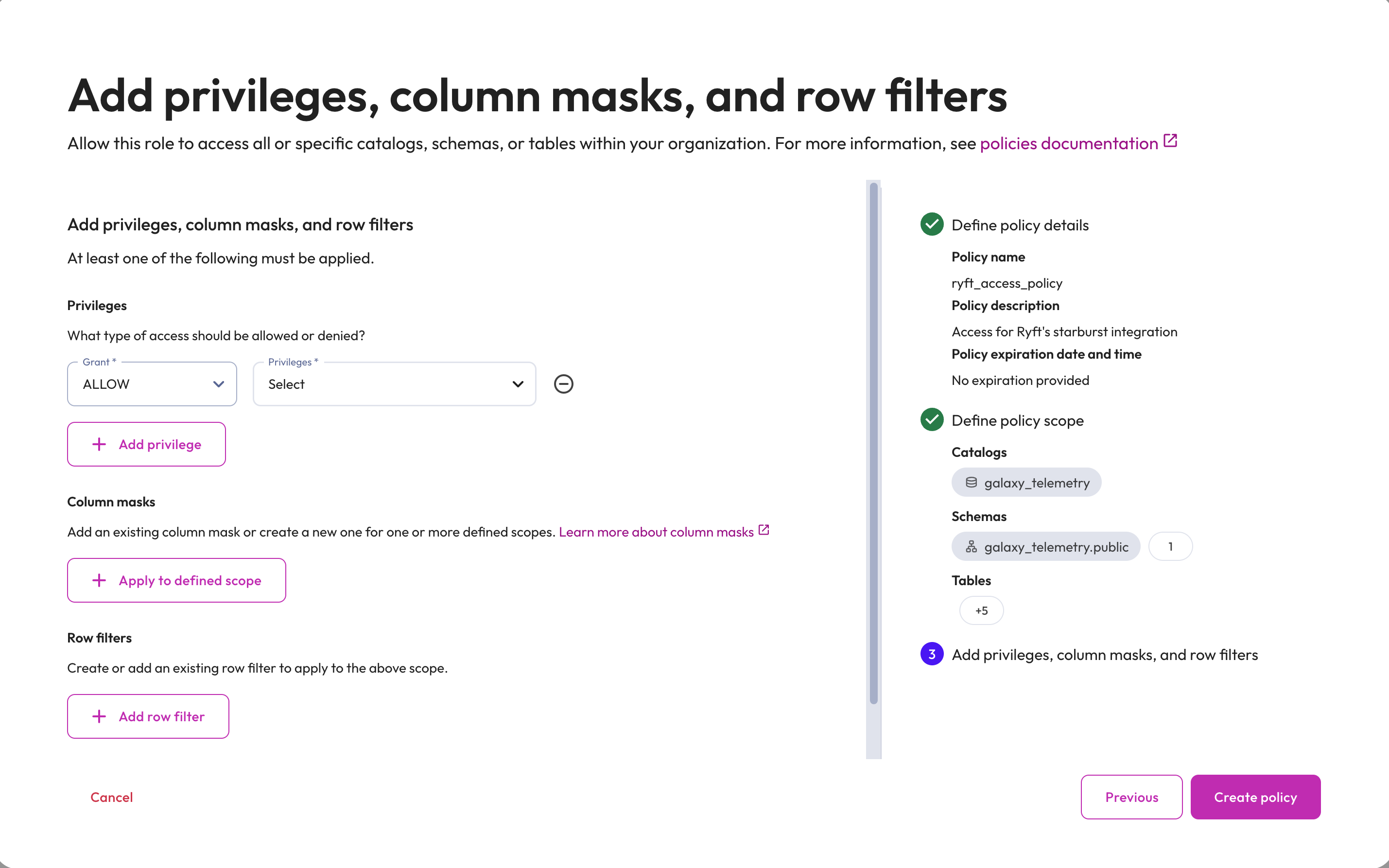
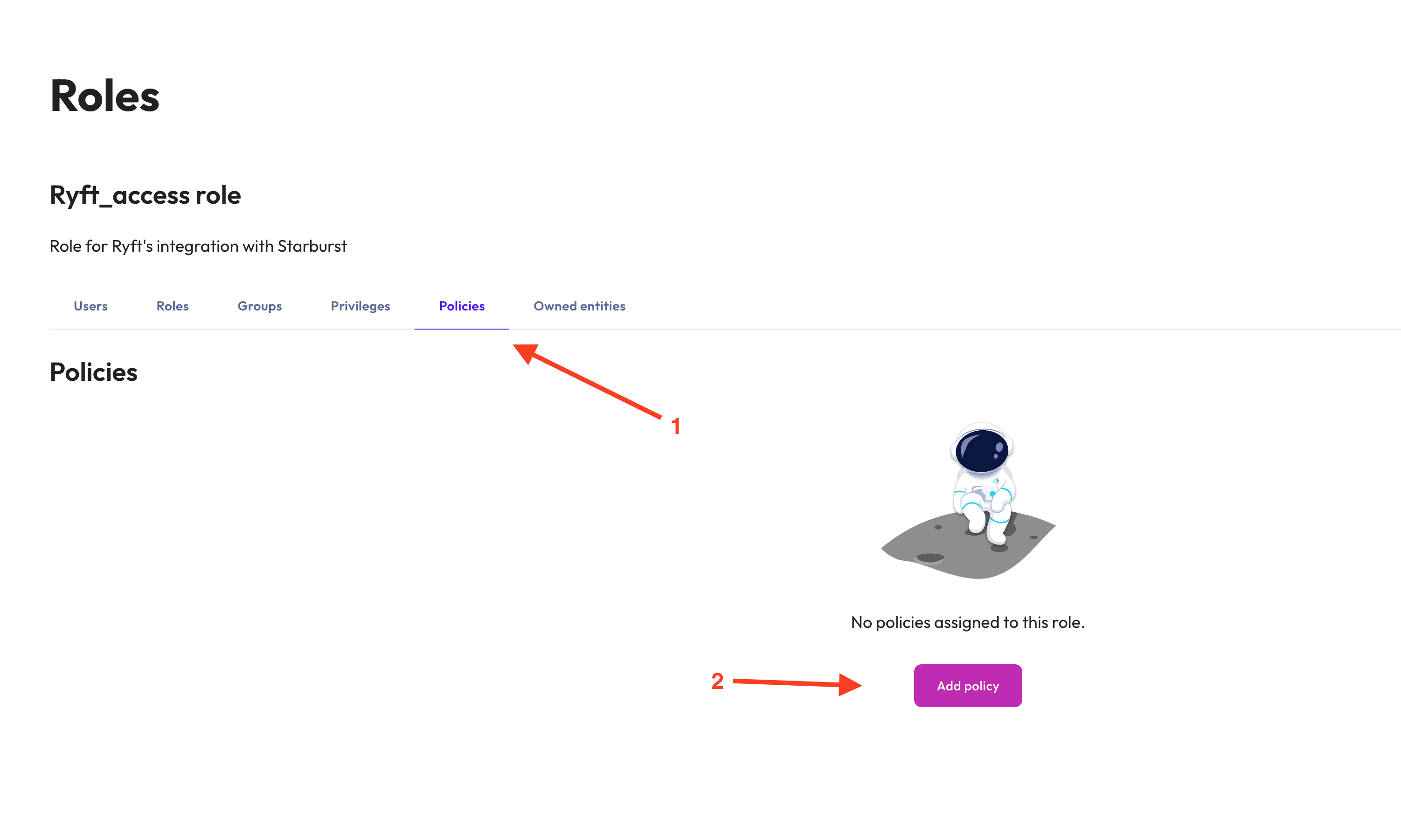
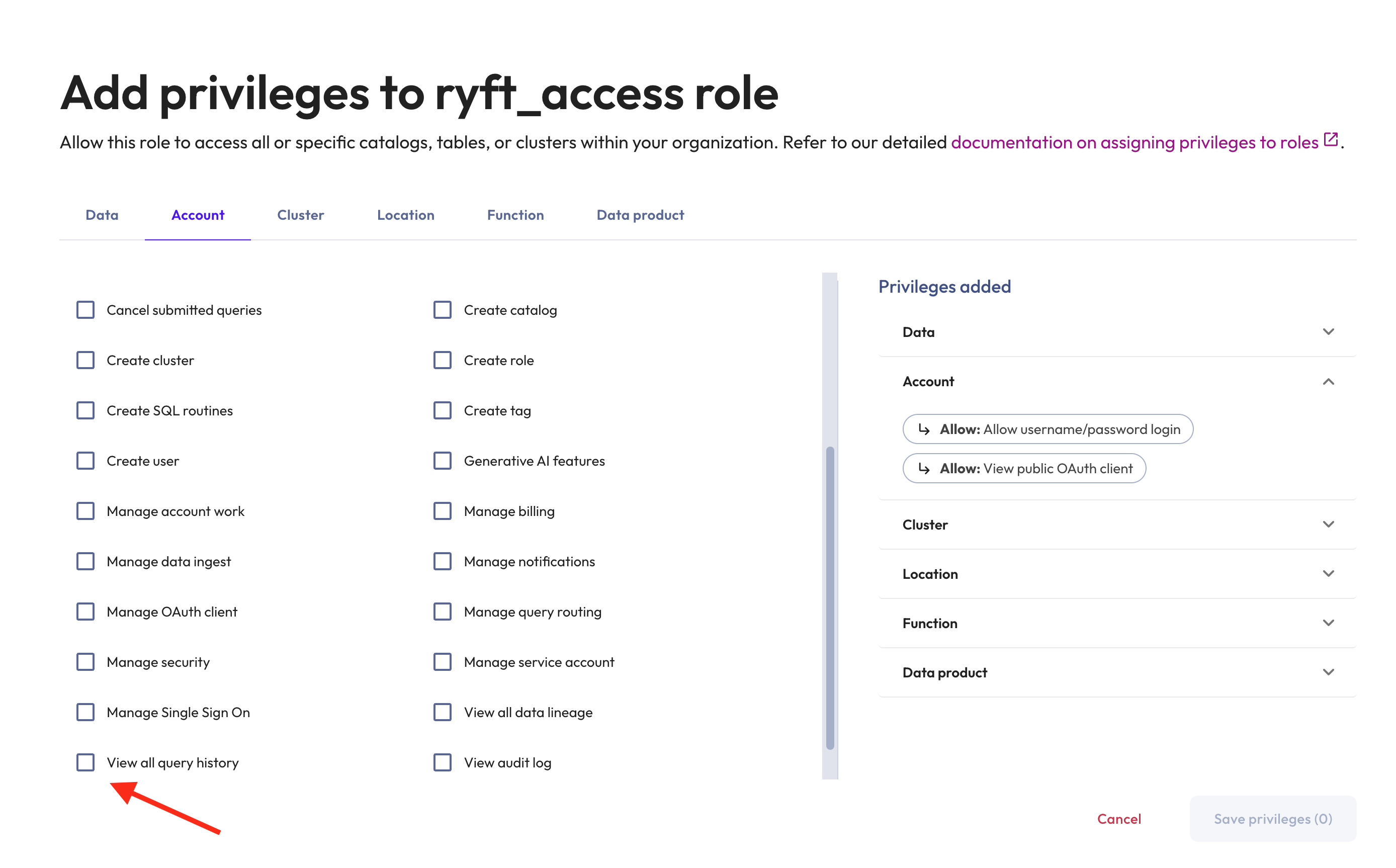
6. Navigate to the Privileges tab and choose Add privilege 7. Choose the Account tab and click on View all query history
Step 3: Creating the Service Account
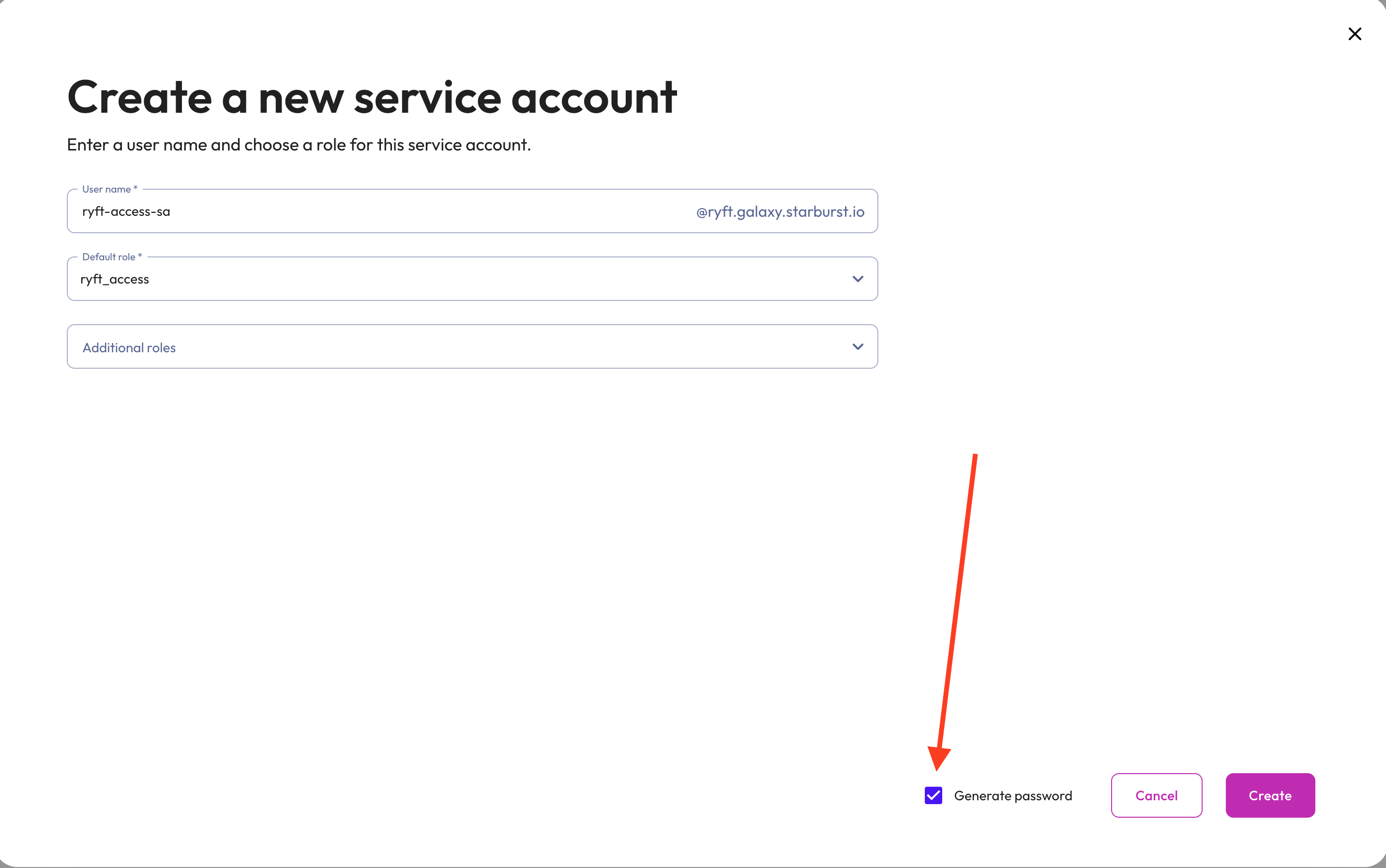
1. Navigate to Admin > Access > Service accounts 2. Click Create new service account 3. Configure the service account:- User name:
ryft-access-sa - Default role:
ryft_access - Check Generate password
- Click Create
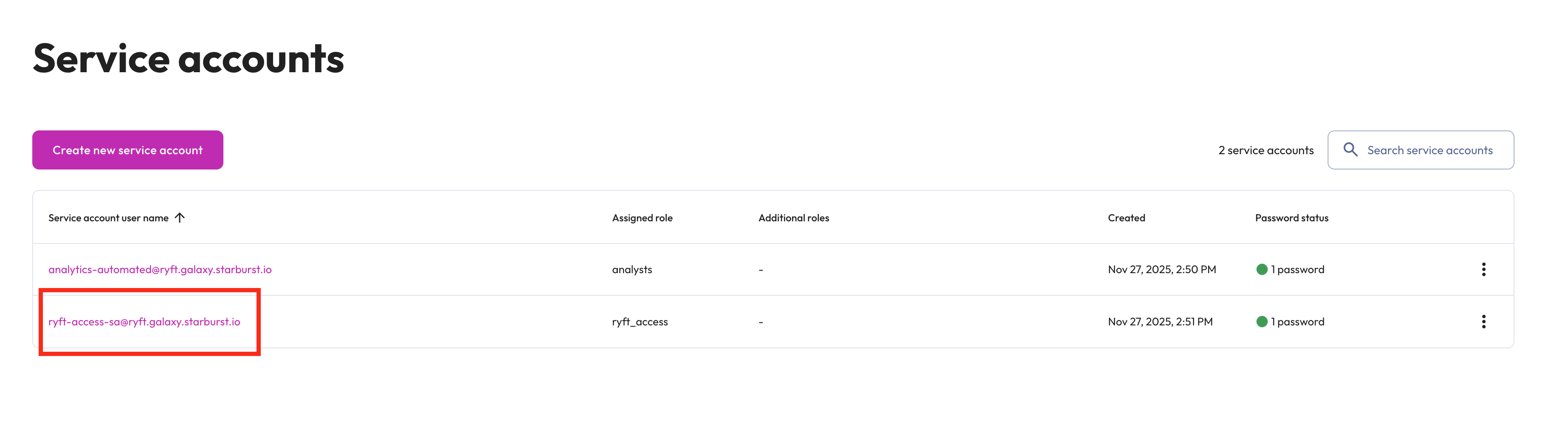
ryft-sa-password) and click Generate password
Important: Save the generated password immediately. You will not be able to view it again after this step. It needs to be shared with your Ryft representative after initial setup is complete.
Step 4: Creating the Cluster
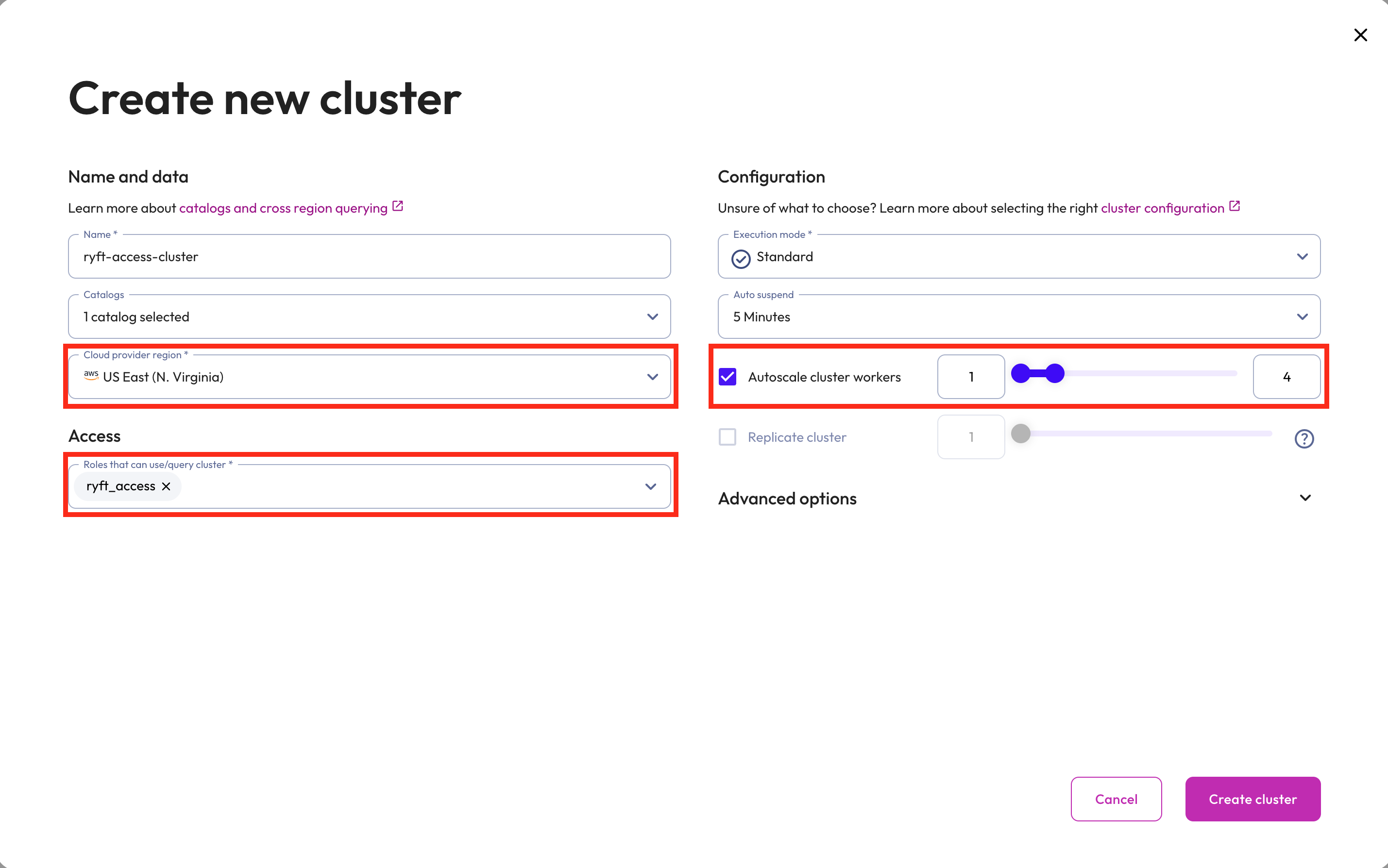
1. Navigate to Admin > Clusters in the sidebar and click Create cluster 2. Under “Create new cluster”, set up the following configuration:- Name:
ryft-access-cluster - Catalogs: Select
galaxy_telemetry (us-east-1) - Cloud provider region: AWS US East (N. Virginia)
- Access: Select the
ryft_accessrole - Execution mode: Standard
- Auto suspend: 5 Minutes
- Autoscale cluster workers: Enable with range 1-4 workers
- Click Create cluster
us-east-1 is the region of the galaxy_telemetry catalog, regardless of where your lake is stored.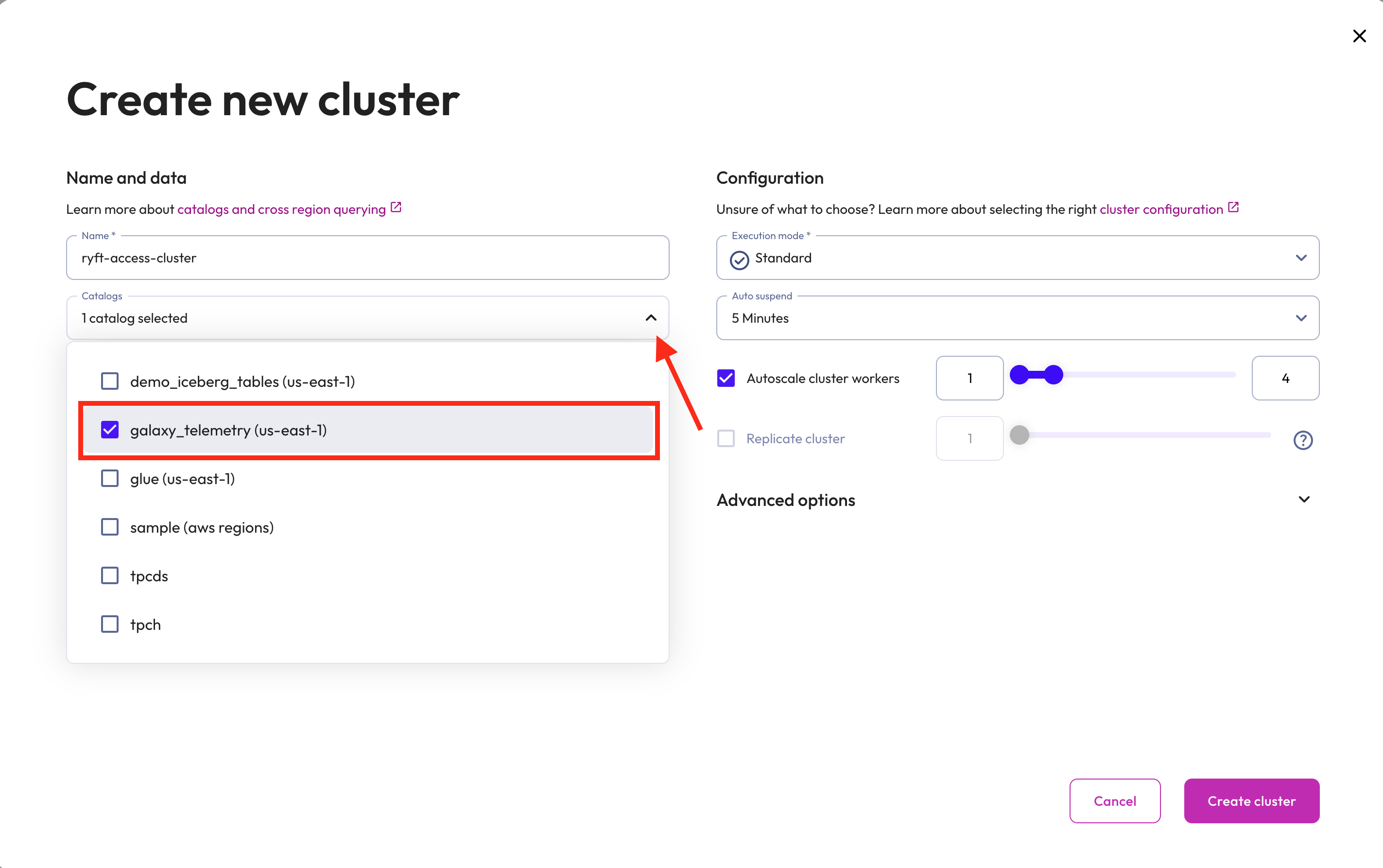
Step 5: Getting Connection Information
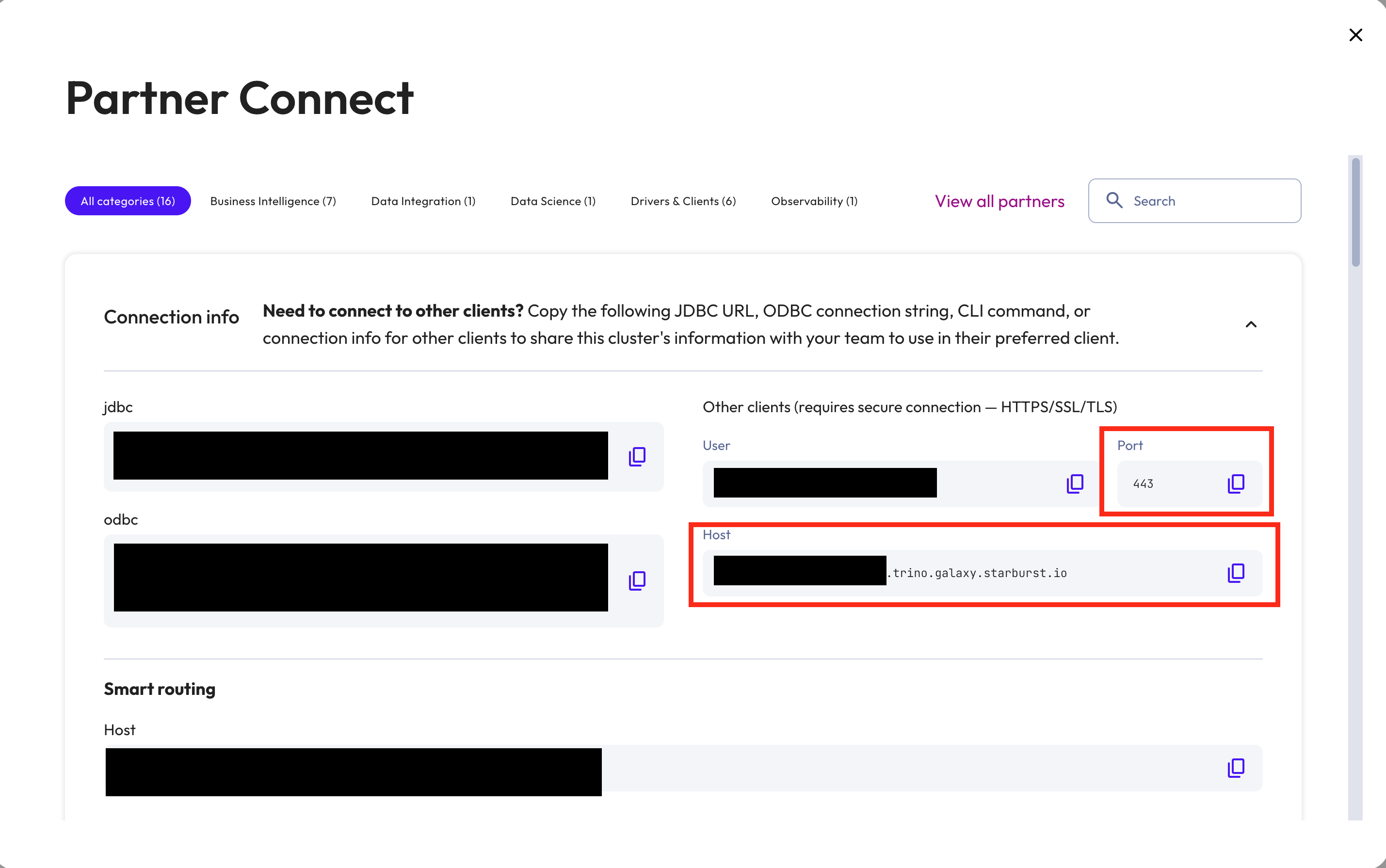
Once your cluster is configured, you will need to share its connection details with Ryft. 1. Click on the new cluster’s name and then “Partner Connect”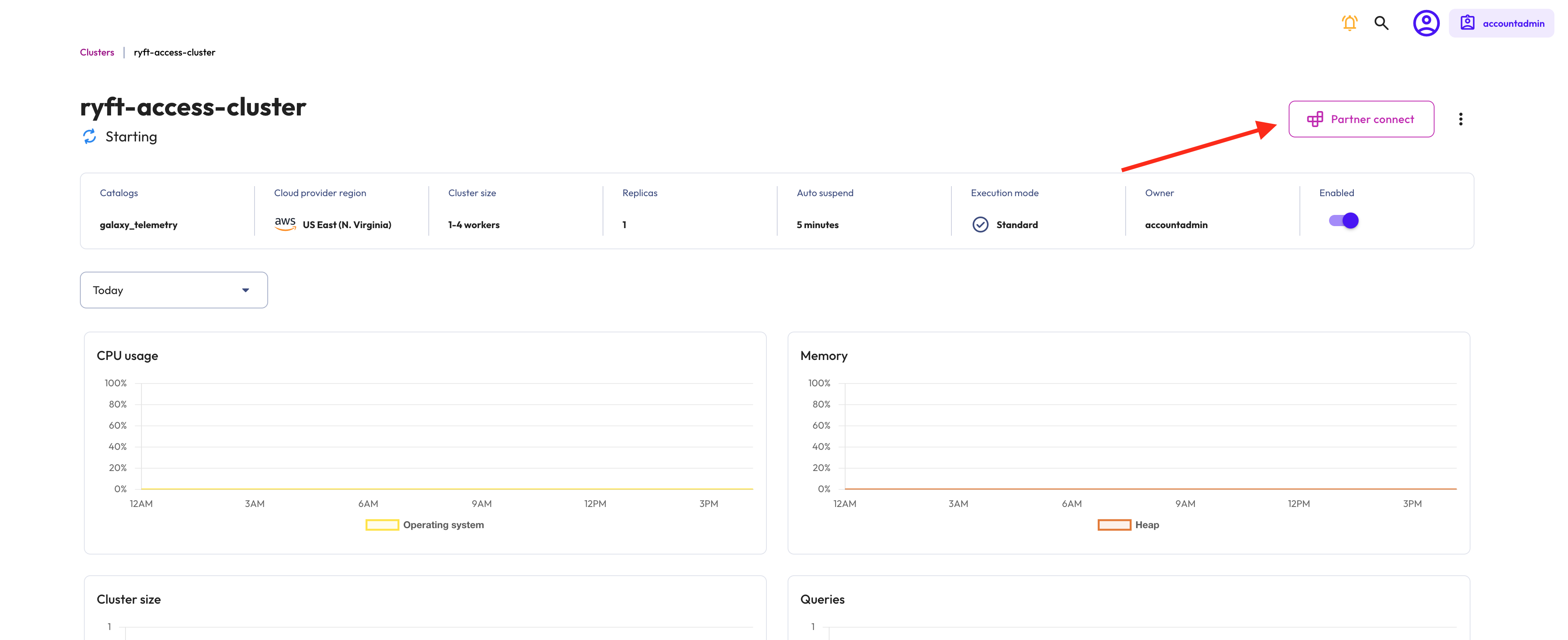
Port and Host blocks.
Step 6: Extract the Catalog name that is used to access external Iceberg tables
Click on “Catalogs” tab (Under “Data” section), and locate the catalog that is connected to your Iceberg external catalog. Provide the catalog name (from the “name” column) to Ryft.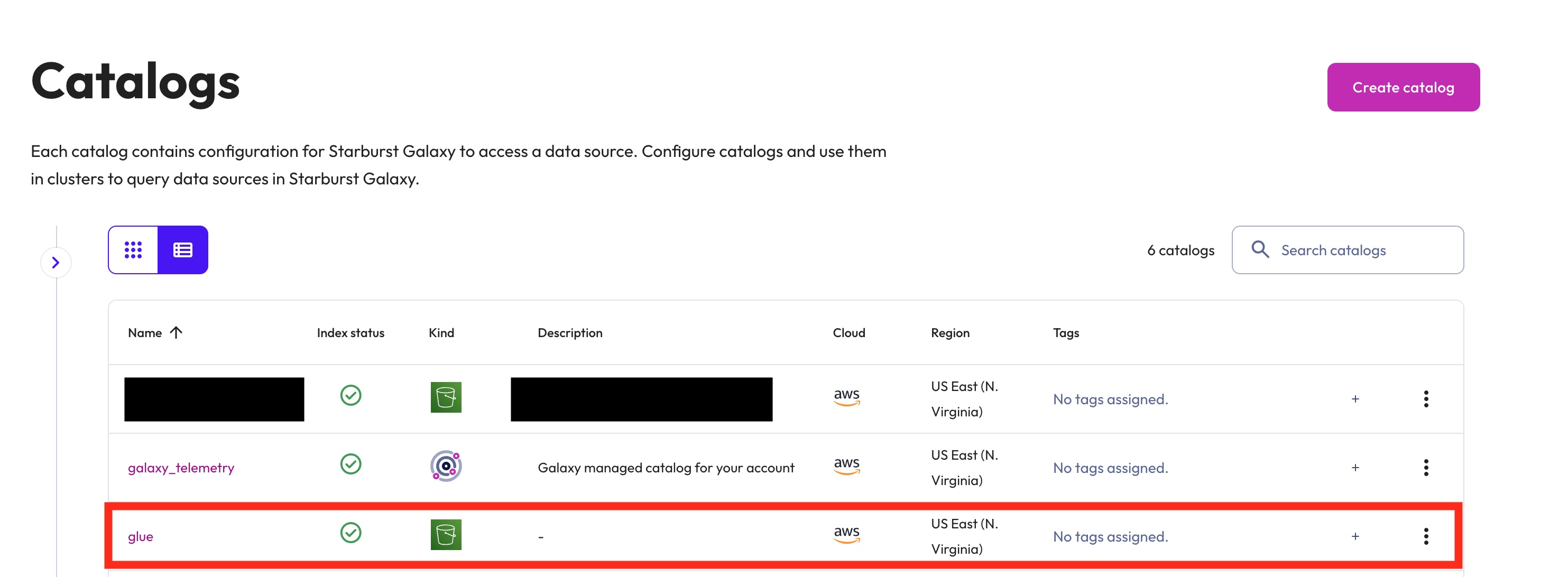
Setup Complete!
In order to finalize the integration with Starburst Galaxy, share the following information with Ryft:
- Ryft’s service account username and password from step 3
- Ryft’s cluster host and port from step 5
- Starburst catalog name for the catalog that is used to access external Iceberg tables from step 6