

Overview
Ryft’s Bring Your Own Cloud (BYOC) deployment model lets you deploy the platform’s data plane infrastructure in a cloud environment that you own and control. This ensures that all data remains entirely within your cloud boundaries, while Ryft’s control plane connects securely to this account and handles provisioning, ongoing updates, and maintenance. In this guide, we will use the following terms for the different accounts:1
Data Plane Account
The dedicated account you will create to host the data plane components will be referred to as the data plane account
2
Lakehouse Account
Your existing account that hosts your lakehouse components (catalog, storage, etc.) will be referred to as the lakehouse account
Step 1: Allocate a Dedicated AWS Account
Following AWS best practices, the preferred approach is to deploy Ryft in a dedicated AWS account, providing clear isolation for identity, resources, quotas, and access control.
This account will be managed by Ryft’s control plane and used to provision and operate the data plane components, including services like VPCs, EMR, and S3 buckets.
ryft-data-plane, and placing it in OU=Infrastructure/OU=Managed.
Step 2: Request Your External IDs
Reach out to your Ryft representative to begin your BYOC setup. They will provide you with unique AWS external IDs used to establish secure cross-account access via IAM.Step 3: Configure IAM Access to Data Plane Account
Create cross-account IAM roles in the data plane account. This allows Ryft to securely manage infrastructure with scoped permissions.- CloudFormation
- Terraform
The easiest way to get started is using our provided CloudFormation template.
Click here to launch the CloudFormation stack and deploy the required IAM role into your AWS account.
Step 4: Create the Data Plane Access Role in Your Lakehouse Account
In your lakehouse account, create an IAM role:- CloudFormation
- Terraform
- Manual
The easiest way to get started is using the data plane role CloudFormation template.
Click here to launch the CloudFormation stack and deploy the required IAM role into your AWS account.
Step 5: Create the Control Plane Access Role in Your Lakehouse Account
If you did not yet integrate the Ryft control plane with your lakehouse account, make sure to create it by following the steps here.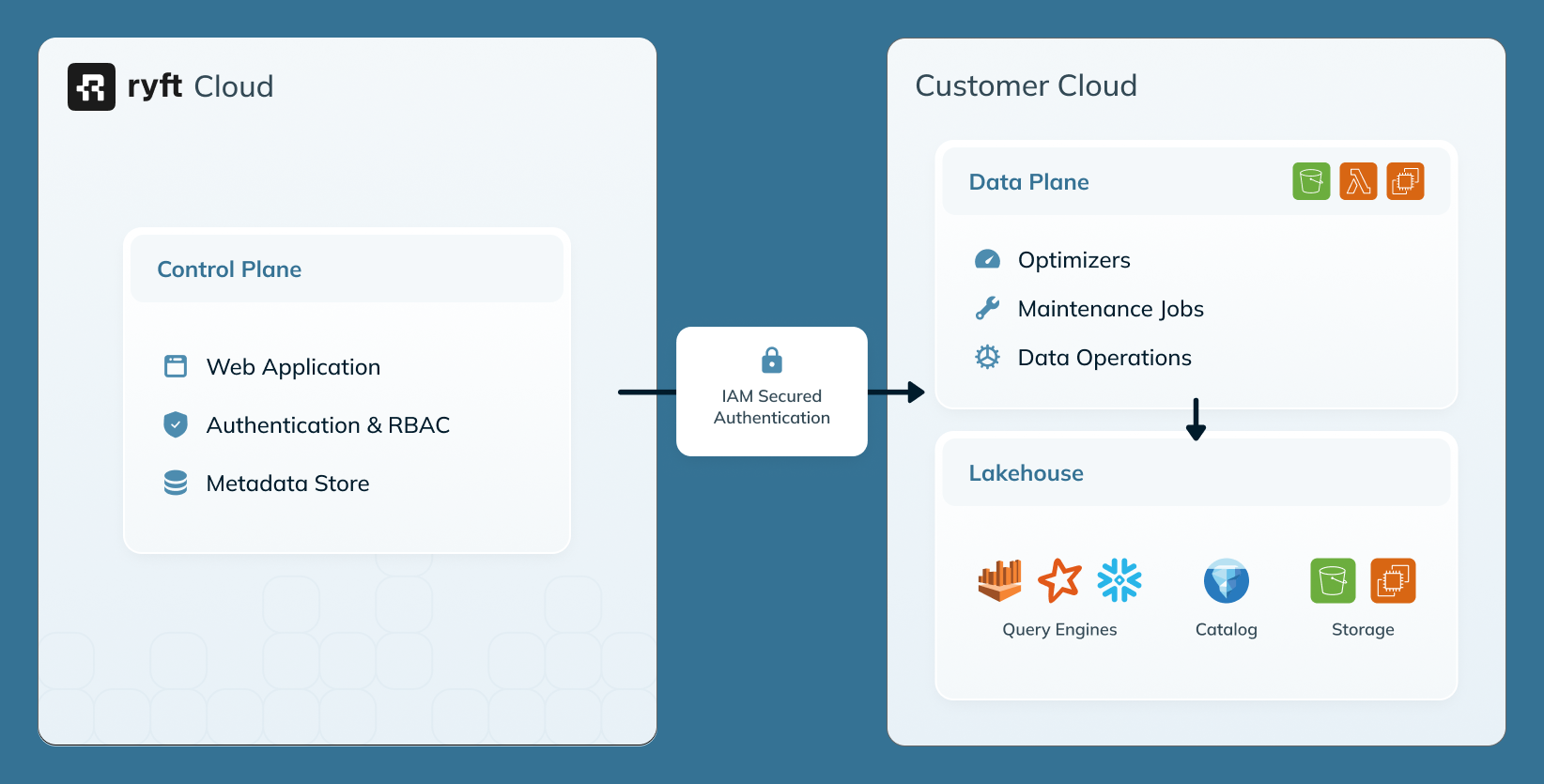
This article contains instructions for setting up the BYOC data plane deployment.
For a general overview of the Ryft architecture and deployment models, refer to System Architecture.
For a general overview of the Ryft architecture and deployment models, refer to System Architecture.
When using a BYOC deployment, it’s recommended to turn off event recording for
Follow the recommendation of AWS as described hereAWS Config -> Settings -> Edit Recorder Settings -> Override settings -> Exclude AWS::EC2::NetworkInterface from recording
AWS::EC2::NetworkInterface in AWS Config Follow the recommendation of AWS as described hereAWS Config -> Settings -> Edit Recorder Settings -> Override settings -> Exclude AWS::EC2::NetworkInterface from recording