

Prerequisites
- A Microsoft Fabric workspace with a lakehouse containing Iceberg tables
- A Microsoft Entra ID App Registration (service principal) with access to the workspace
- Your Azure Tenant ID, Workspace ID, and Lakehouse ID
- The following tenant admin settings must be enabled (Fabric Portal -> Settings (gear icon) -> Admin portal -> Tenant settings):
- Service principals can call Fabric public APIs — found under Developer settings
- Users can access data stored in OneLake with apps external to Fabric — found under OneLake settings
Step 1: Create a Microsoft Entra ID App Registration
Register an application in Microsoft Entra ID that Ryft will use to authenticate against your OneLake lakehouse.- Navigate to Azure Portal -> Microsoft Entra ID -> Manage -> App registrations
- Click New registration
- Enter a name (e.g.
Ryft-OneLake-Integration), select Single tenant only for supported account types, and register the application - Note the Application (client) ID and Directory (tenant) ID
- Navigate to Manage -> Certificates & secrets -> New client secret
- Create a secret and note its Value
Step 2: Grant access to your Fabric workspace
The service principal must have read access to your Microsoft Fabric workspace and lakehouse.- Navigate to Microsoft Fabric and open your workspace from the left sidebar
- Click Manage access
- Click Add people or groups
- Search for the App Registration name you created (e.g.
Ryft-OneLake-Integration) - Assign the Contributor role (minimum required for metadata access via the OneLake API)
- Click Add
Step 3: Collect the required identifiers
Open your lakehouse in the Fabric portal — you should see the Explorer view with your tables and files: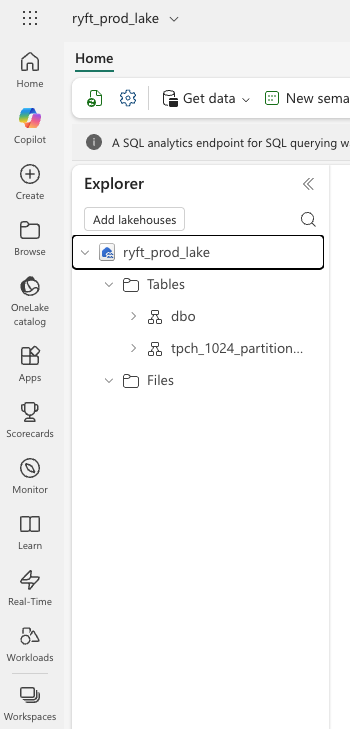
The Workspace ID and Lakehouse ID are GUIDs visible in the Fabric portal URL when you open the workspace or lakehouse. For example:
https://app.fabric.microsoft.com/groups/<workspace_id>/lakehouses/<lakehouse_id>Step 4: Provide credentials to Ryft
Share the following with your Ryft representative:- Tenant ID — your Microsoft Entra ID directory ID
- Workspace ID — the Fabric workspace GUID
- Lakehouse ID — the Fabric lakehouse GUID
- Client ID — the App Registration application ID
- Client Secret — the App Registration secret value
https://onelake.table.fabric.microsoft.com/iceberg.