

Creating an application
- Log in to your Okta Admin Console.
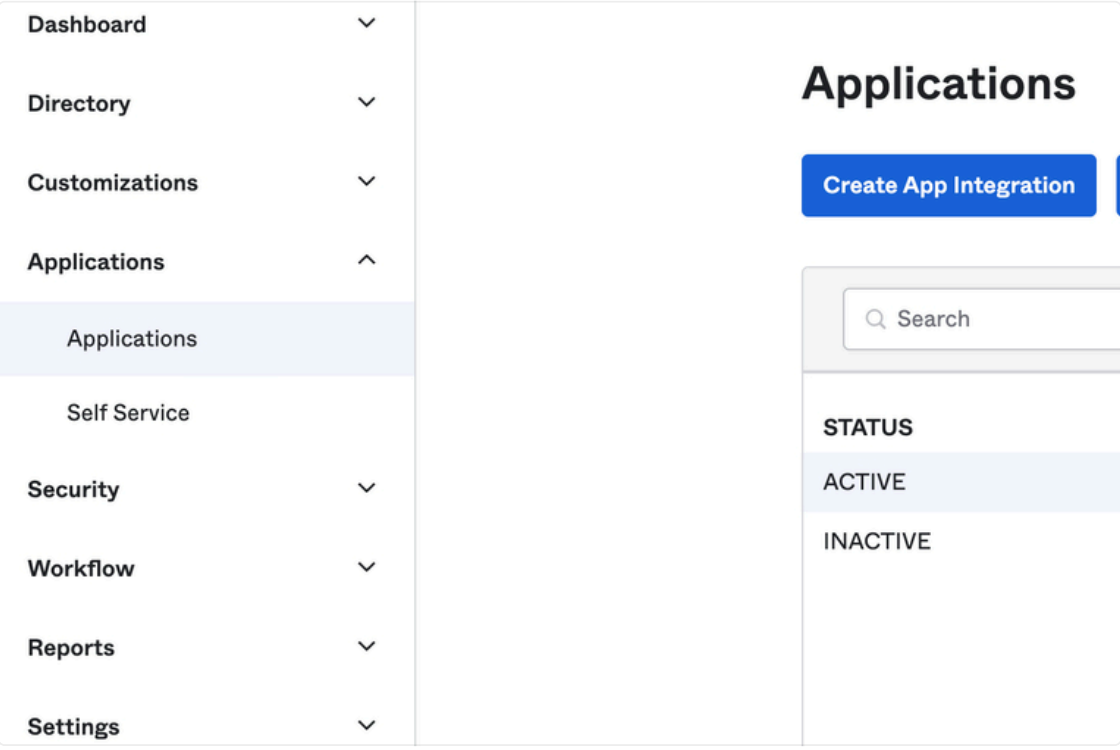
- Navigate to Applications > Applications, and click on Create App Integration.
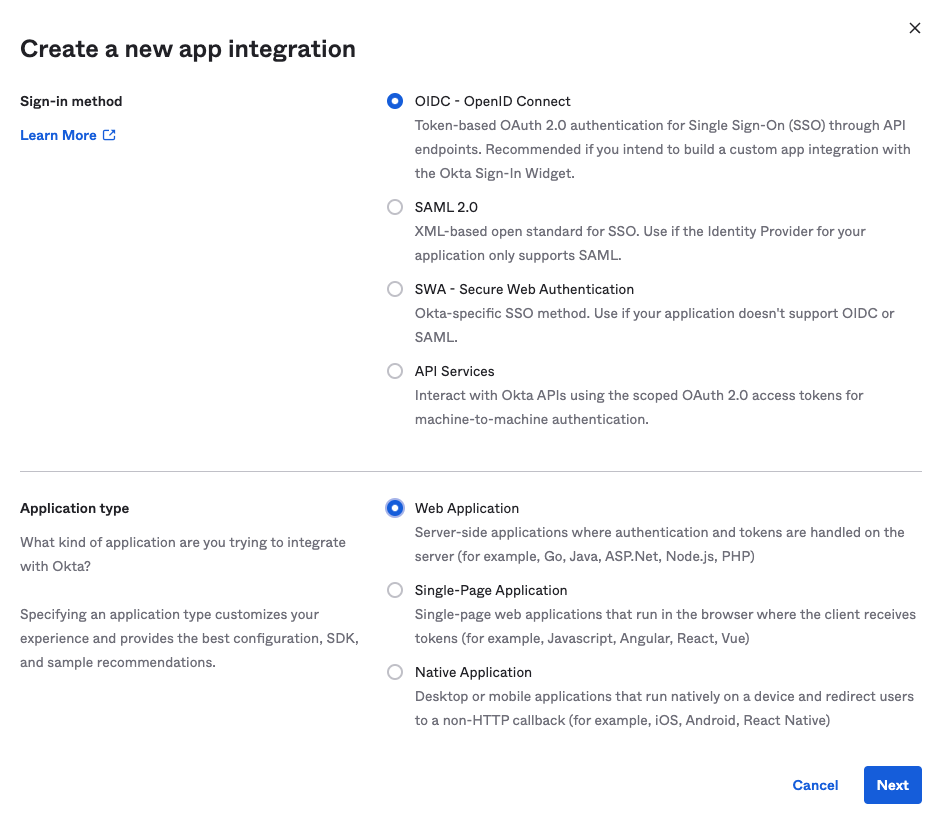
- Select OIDC - OpenID Connect as the Sign-in method.
- Select Web Application as the Application type.
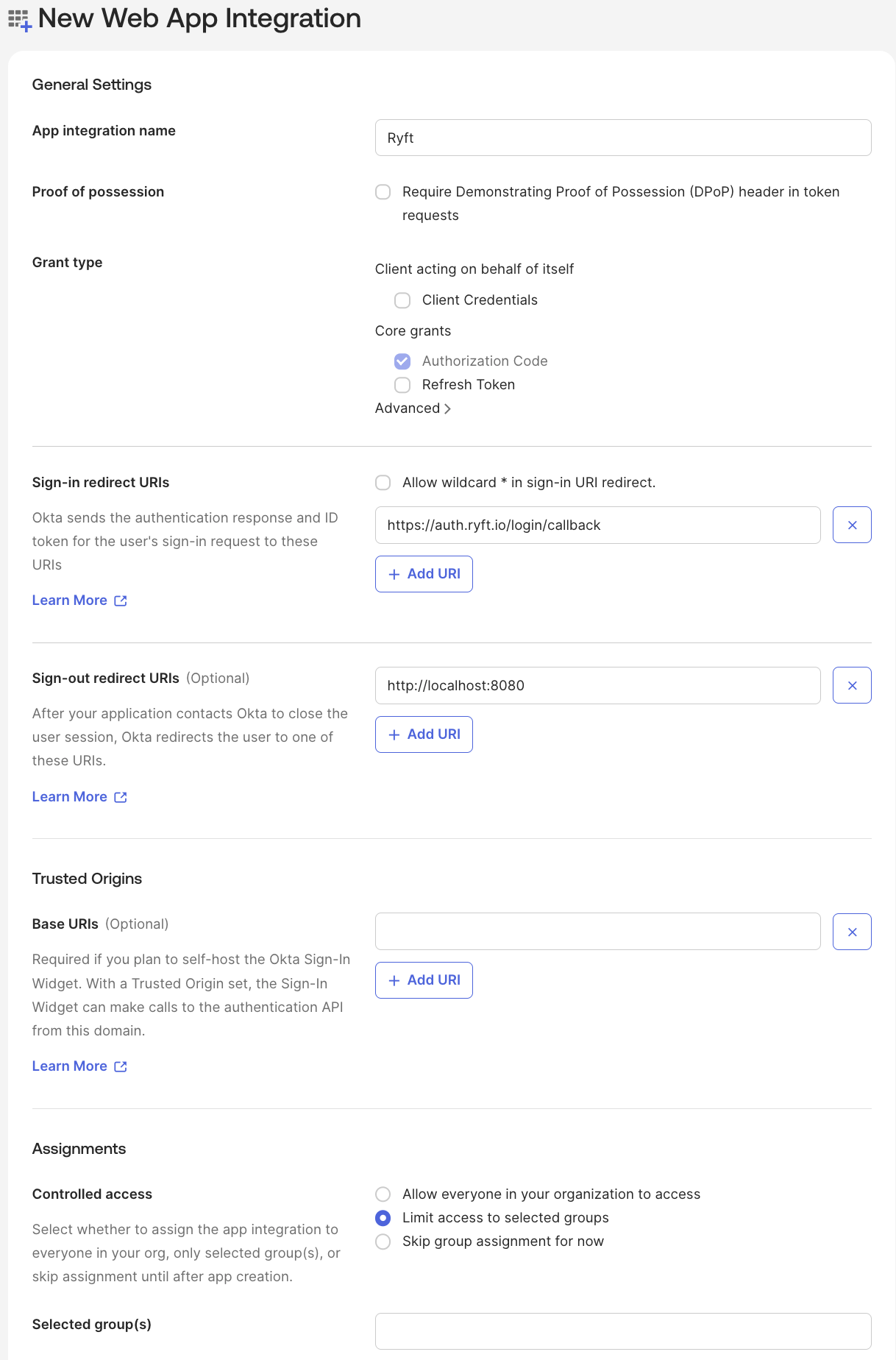
- Set App Integration Name to “Ryft” (or any name you prefer).
- Only select Authorization Code under the Grant type section.
- Set Sign-in redirect URIs to
https://auth.ryft.io/login/callback - Choose the relevant Assignments for your organization.
- Send your Ryft representative the Client ID, Client Secret and Okta Domain.
- Download the following Ryft logo and edit the application to add the logo so it’s easily recognizable by users:

To limit access to specific IP ranges, you can configure your Okta application using the following guide.
Creating an application link (optional)
- Click on the Ryft application you just created.
- Navigate to General settings and click Edit
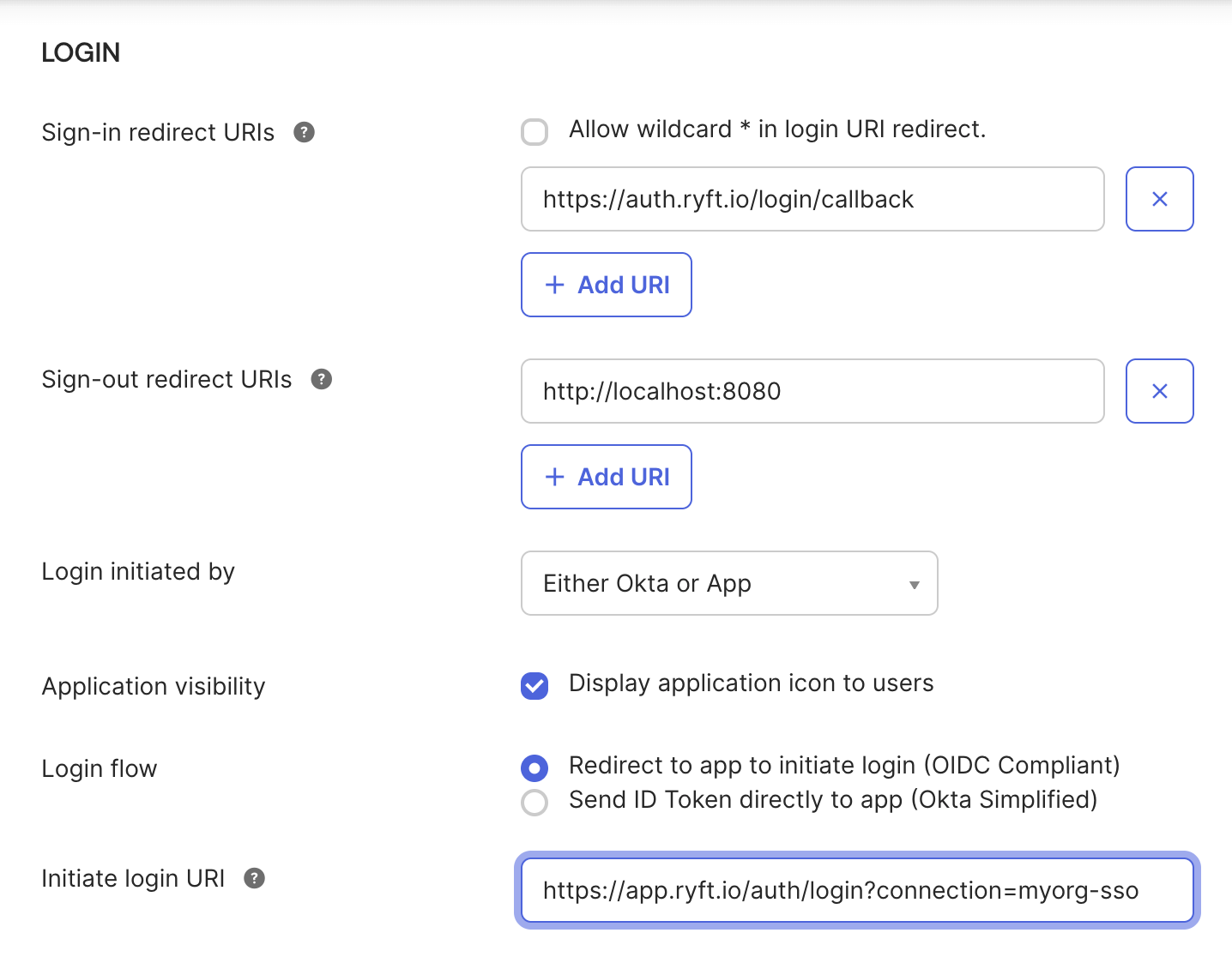
- Set Login initiated by to Either Okta or App
- Select Display application icon to users
- Select Redirect to app to initiate login (OIDC Compliant) under Login Flow
- Set Initiate login URI to https://app.ryft.io/auth/login?connection={myorg}-sso
- Note - replace
{myorg}with your Ryft organization name. If your organization name is “acme”, the URI would be:https://app.ryft.io/auth/login?connection=acme-sso
- Note - replace
- Click Save
Done! You have successfully configured Okta SSO for your Ryft organization. Users can now log in to Ryft using their Okta profile.